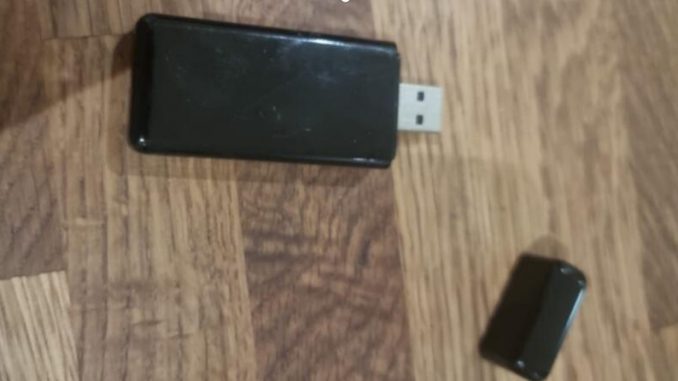
Now the BMW ICOM Diagnostic Tool’s Wi-Fi module is not build-in the ICOM tool. It is a separately WIFI adapter, you need to set something if you want to use the ICOM and laptop wireless.
The BMW ICOM WIFI adapter picture as below:
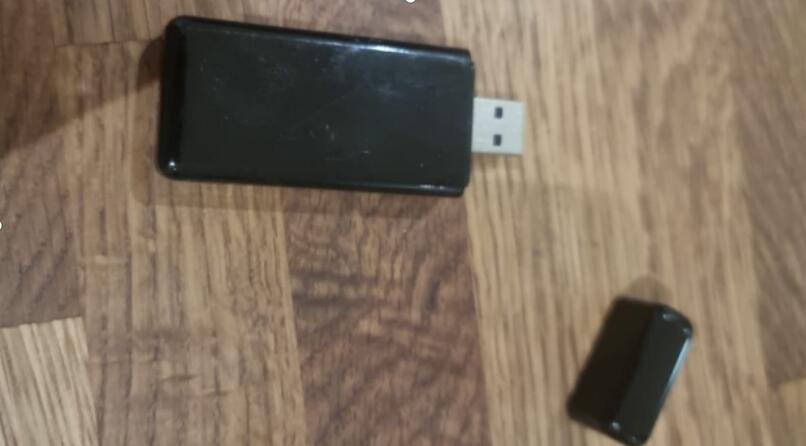
How to connect the ICOM wireless?
Please check the video first, you need to do follow the video:
https://mega.nz/file/RQ8AgYrQ#wJT-UkjXwNZxDGtQxopu5vI3-TiaU-pfJAw8ad7X4Rc
And the steps:
The computer must be connected to the internet first.
1. Connect the WIFI module to the host.
2. Connect the OBD cable to the host for power supply.
3. Connect the network cable to the host.
4. Connect to the router’s WIFI (in the video, “ICOM” refers to the router name used by the engineer, not the ICOM hardware).
5. Enter the ICOM manager address in the web browser (shown in the video; follow the video instructions).
6. After completing step 5, disconnect the network cable from the host and disconnect the OBD cable to power off the host.
7. Reconnect the OBD cable for power supply. Wait for the WIFI light to turn on, then open the diagnostic software to perform diagnostics.
NOTE: The step4 is let the laptop connect your home’s WIFI. In the video, the ICOM is the engineer’s router name.
And please contact us if you have the connection issue with BMW ICOM tool.
Email: service@autonumen.com
https://www.autonumen.com/goods-7143-WIFI-BMW-ICOM-Next-BMW-ICOM-A3-BMW-Professional-Diagnostic-Tool.html