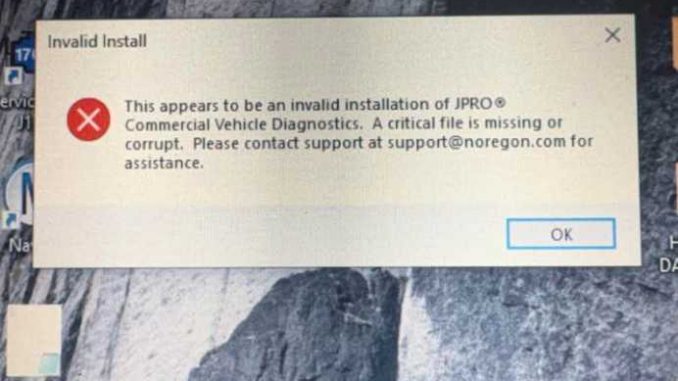
❌ Problem Description
A customer who purchased JPRO diagnostic software from Autonumen contacted us after several months of normal use with the following message:
“JPRO stopped working the other day. It states a missing file or invalid installation.”
The software had been installed remotely by our team and was previously running without any issues.
🔍 Cause of the Issue
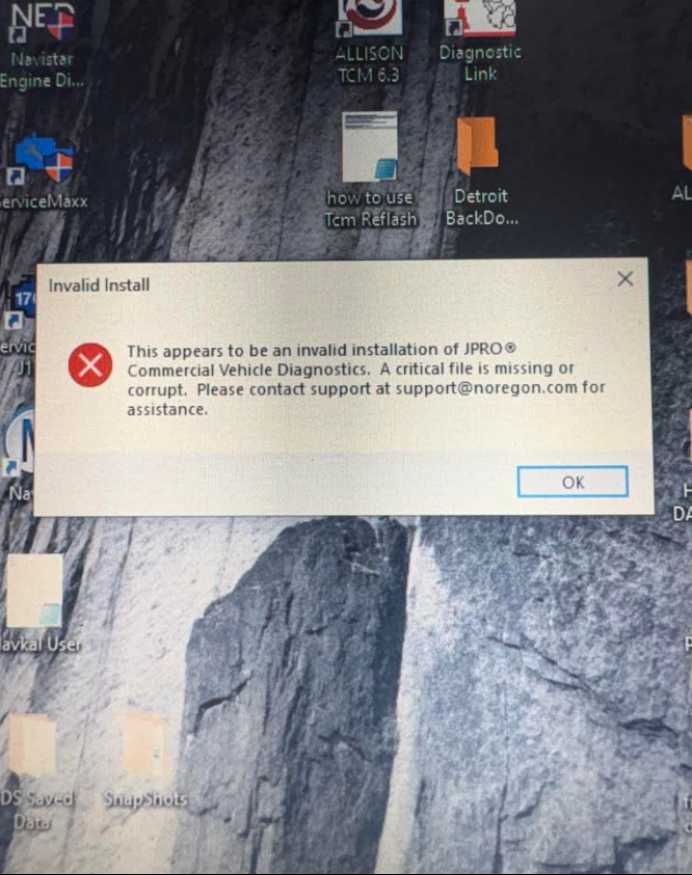
After reviewing the error screenshots, our engineer suspected that some core JPRO program files had been deleted or damaged.
This can happen due to:
- Antivirus or Windows Defender deleting files
- Accidental file removal
- System cleanup tools
- Interrupted system updates
When essential files are missing, JPRO will report an Invalid Install error and fail to launch.
🛠️ Solution: Remote Technical Support
To resolve the issue quickly:
- The customer provided TeamViewer access
- Our engineer checked the JPRO installation environment
- Missing and corrupted files were restored
- Installation integrity was repaired
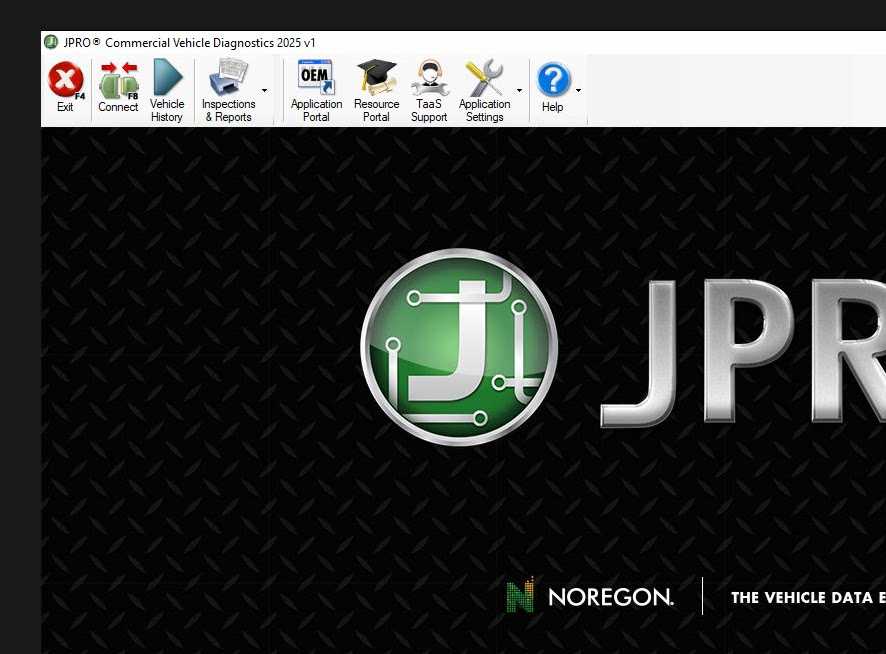
- JPRO software was tested and confirmed working normally again
✅ Result: The software was fully restored without reinstallation, and the customer was able to continue diagnostics immediately.
✅ Final Status
- ✔ JPRO software repaired successfully
- ✔ No data loss
- ✔ No additional cost to the customer
🔎 Looking for JPRO Diagnostic Software?
Browse all available JPRO products and versions here:
👉 https://www.autonumen.com/search.php?type=product&q=JPRO&DirID=
💬 Free Technical Support from Autonumen
If your JPRO software shows an Invalid Installation, Missing File, or similar error—and your order is from Autonumen—we provide free lifetime technical support.
📧 Contact us:
Email: service@autonumen.com
Our engineers will help you diagnose and fix the issue quickly, just like in this case.
Frequently Asked Questions (FAQ)
What does the “Invalid Installation” error mean in JPRO?
The JPRO “Invalid Installation” or “Missing File” error means the software cannot locate required program files. This usually happens when core installation files are deleted, corrupted, or blocked by security software.
Why did JPRO stop working after months of normal use?
JPRO may stop working after long-term use due to Windows updates, antivirus actions, system cleanup tools, or accidental file deletion. When essential files are removed or modified, JPRO can no longer start correctly.
Can antivirus or Windows Defender cause JPRO installation errors?
Yes. Antivirus programs and Windows Defender sometimes mistakenly flag JPRO files and delete or quarantine them. Once critical components are removed, JPRO may display an Invalid Install or Missing File error.
How can I fix the JPRO “Invalid Installation” problem?
In most cases, the issue can be fixed by repairing the installation and restoring missing files. A professional technician can check the installation environment, recover deleted components, and verify that JPRO launches normally—often without a full reinstall.
Do I need to reinstall JPRO to solve this issue?
Not always. If only a few files are missing or damaged, JPRO can usually be repaired instead of reinstalled. A full reinstallation is only required if the installation is severely damaged.
What information should I provide when contacting support?
To speed up troubleshooting, provide:
- A screenshot of the JPRO error message
- Your Windows operating system version
- Any recent changes (updates, antivirus scans, cleanup software)
- TeamViewer ID (if remote support is required)
Do you offer free technical support for JPRO?
Yes. If your JPRO diagnostic software was purchased from Autonumen, we provide free technical support, including remote repair assistance for installation and runtime issues.
📧 Support Email: service@autonumen.com
Where can I buy JPRO diagnostic software from Autonumen?
You can view all available JPRO versions and products here:
👉 https://www.autonumen.com/search.php?type=product&q=JPRO&DirID=